What horch is
horch is a meeting memory for your Mac. It records your meetings, transcribes them locally, and turns the confirmed transcripts into things you can use: prep briefings before you walk in, todos that file themselves, topic pages that track what moved, people pages that remember every promise, and a chat that answers from what was actually said.
Everything lives on your Mac as files and a local database. Audio never leaves the machine. The only network traffic is the one you opt into: an AI provider for summaries and chat (and you can keep even that local).
Every meeting moves through the same pipeline:
| Status | What is happening |
|---|---|
| Recording | Microphone plus the selected app's audio are being captured |
| Transcribing | Local transcription and speaker diarization are running |
| Reviewing | The draft transcript is waiting for you to confirm it |
| Summarizing | The summary is being generated |
| Complete | The canonical Markdown files are written and indexed |
| Failed | Something needs your attention; the meeting can be retried |
Nothing enters your library without the Reviewing step. horch only treats a transcript as truth after you confirmed it.
Install
- Download the DMG from horch.app/downloads and drag horch into Applications.
- Launch it. The first-run wizard walks you through setup in seven steps.
horch requires macOS 14 or later on Apple Silicon. The trial runs 30 days with everything enabled, no account required.
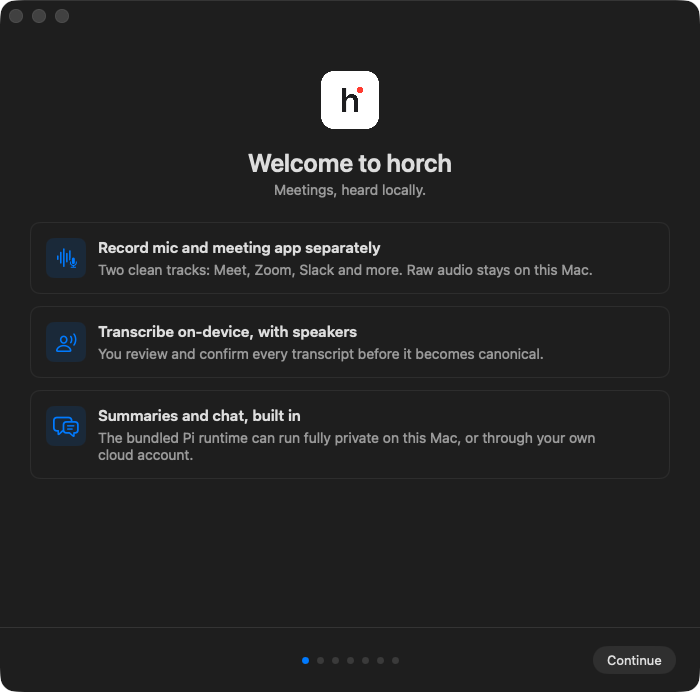
The wizard steps:
- Welcome. What horch is and what gets set up.
- Permissions. Microphone and Screen Recording are required to record (Screen Recording is how macOS grants access to another app's audio; horch captures audio only). Calendar, Notifications and Files & Folders are optional. Files & Folders only matters if you keep your workspace folder in Documents, Desktop or Downloads: macOS gates those, and asking here means the prompt does not interrupt you mid-meeting later.
- Calendars. Pick which calendars horch watches. Optional; skip it if you did not grant calendar access.
- Models. Downloads the transcription and diarization models. These run locally; nothing is sent anywhere.
- Workspace. Where your confirmed transcripts and notes are written as Markdown. horch picks
~/Documents/horchand creates it for you; change it here if you want them somewhere else. - AI. Configure a summary and chat provider: a local model, an API key, or a subscription login. The picker states what your Mac has and warns before a model that needs more memory than it does. You can also pick "Not now" and set it up later; summaries, briefings and chat stay off until you do, and nothing else is affected.
- Ready. A setup summary, then the app opens.
Everything the wizard configures can be changed later in Settings, and the Setup Doctor (see Troubleshooting) re-checks all of it at any time. If anything is still missing, Today carries a single setup line naming the next missing piece, one at a time (recording permissions, transcription models, AI, the transcripts folder, the calendar, then anything else the Setup Doctor found), with the button that fixes it, until they are all in place. You can dismiss it.
The main window
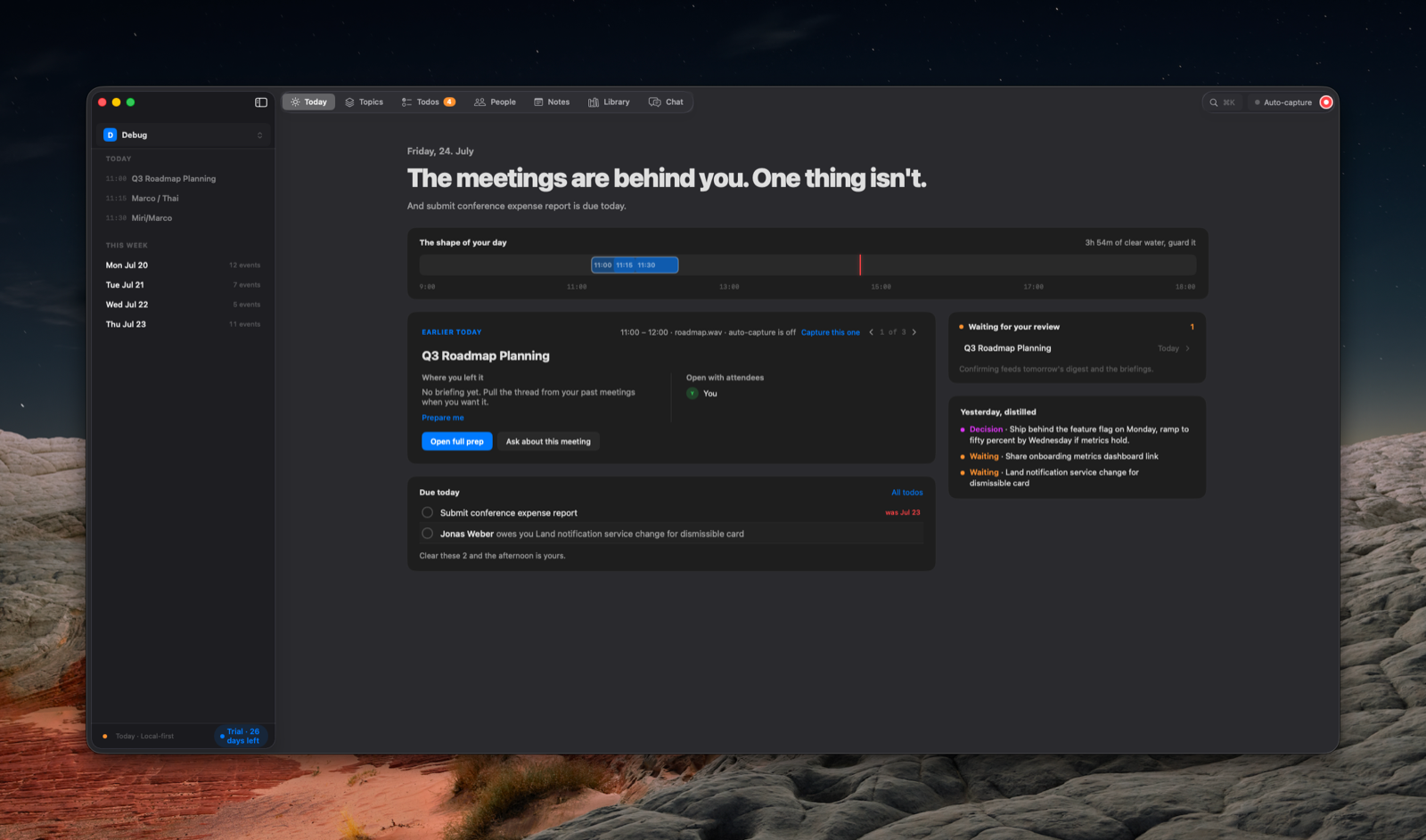
The sidebar lists every place: Today, Decide (with the count of what waits on you), Todos, People, and Topics; under Library, Meetings, Notes, and Artifacts; under Assistant, Sessions, Routines, Soul, Diary, and Skills. The workspace switcher sits on top and Settings at the bottom. Decide, Meetings, People, and Sessions add a middle column with their list beside the page.
The toolbar names the screen with a line of context under it, and carries the screen's own switch where it has one (Todos: I owe, Owed to me, Cleared, Everything; a complete meeting: Summary and Transcript). To the right sit the Ask field ("Ask or jump to", ⌘K), New note, and the capture group: the auto-capture state and the record button. While recording, the capture group becomes a single stop pill with the source and elapsed time. The last button shows or hides the inspector, the one side panel on the right: a todo's details, a meeting's "Out of this meeting", a topic's glance, a routine's page. It is disabled on screens without one.
Calendar and the Setup Doctor are not in the sidebar; they open from the Go to Pane menu or the Go to section of the ⌘K palette.
Every claim horch makes carries a receipt: one chip naming the speaker, the moment, and the meeting. Click it for the verbatim quote, a play button for the moment, and Open in transcript (or Open meeting, Open thread, Open note).
Keyboard shortcuts
| Shortcut | Action |
|---|---|
⌘R | New recording |
⇧⌘I | Import audio |
⌥Space | Quick capture (global, works outside the app; configurable) |
⌃⌥V | Capture conversation (global, works outside the app; configurable) |
⌘K | Ask or jump to: search, Ask, and Go to |
⌘F | Find inside a transcript |
⇧⌘1 … ⇧⌘5 | Today, Decide, Todos, People, Topics |
⇧⌘6, ⇧⌘7 | Meetings, Notes |
⇧⌘8, ⇧⌘9 | Sessions, Routines |
⌘1 … ⌘5 | Switch workspace |
⌘, | Settings |
⇧⌘A | Pop the Assistant out into its own window |
Record a meeting
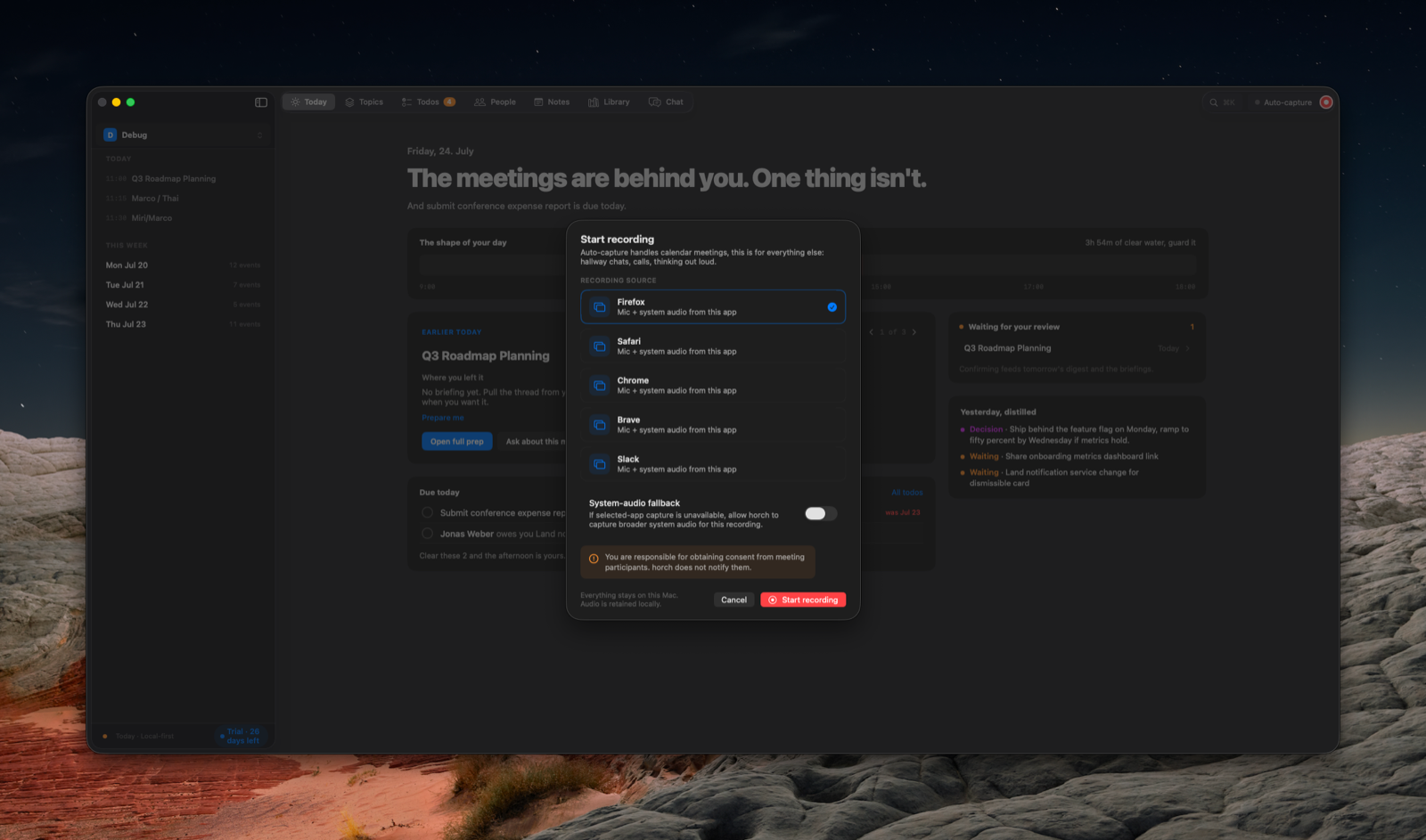
Click the red record button in the toolbar (or press ⌘R, or use the menu bar item). Pick the source: horch records your microphone plus the audio of one selected app. Slack, Firefox, Safari, Chrome, Brave, and the macOS Phone app are supported sources.
While recording, the toolbar shows a stop pill with the source and elapsed time, and the menu bar item carries the recording dot, so you can stop from anywhere. When you stop, transcription starts immediately and the meeting appears under Meetings with live progress.
Let the calendar start it
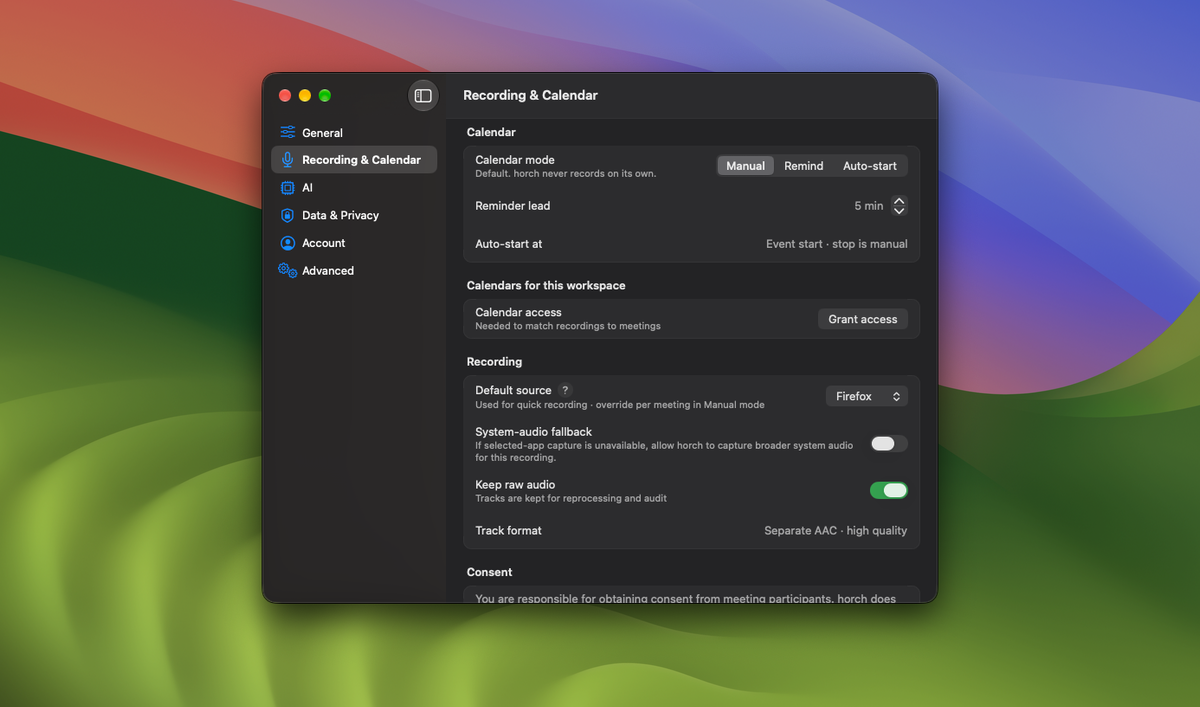
Settings > Recording & Calendar offers three modes:
| Mode | Behavior |
|---|---|
| Manual | You start every recording yourself |
| Remind | A notification before each meeting, with a configurable lead time |
| Auto-start | Recording starts by itself when a calendar meeting begins |
The auto-capture state in the toolbar shows whether auto-start is watching your calendar; click it to open that pane. Calendar attendees are used as suggestions during review; they are never assigned automatically.
Auto-start records entries that have other invitees, in the calendars you checked. A block you hold alone (focus time, a room booking with nobody invited individually) is left alone, and horch tells you when one starts, with Start recording now to record it anyway. Whenever auto-start skips a meeting or cannot start it, a notification says why.
Import existing audio
File > Import audio (⇧⌘I) takes either one mixed audio file or two separate tracks (microphone side and app side) and runs them through the same pipeline: transcription, review, summary.
Review and confirm
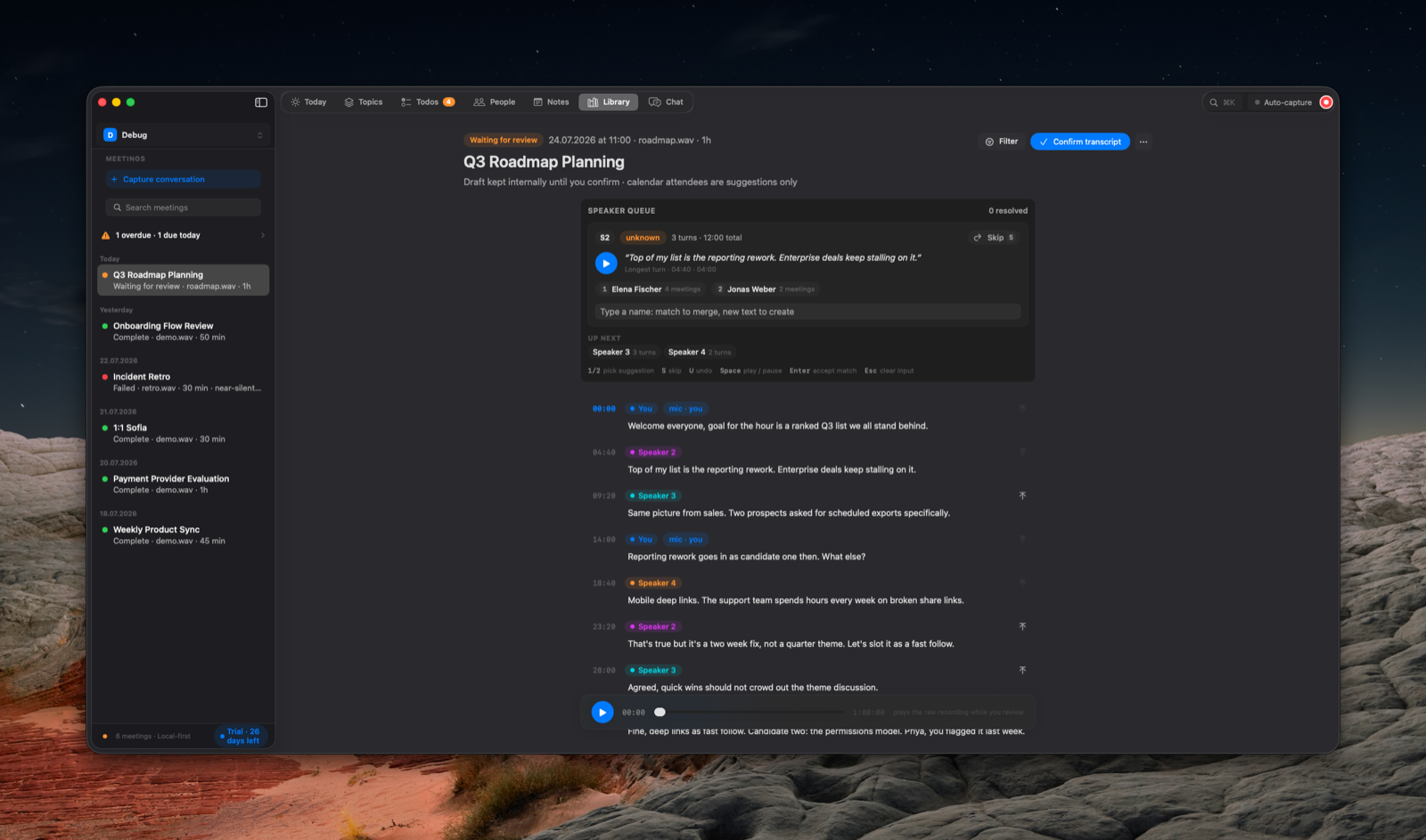
After transcription the meeting lands in Reviewing. This is the one manual gate in the pipeline: you decide what enters your library.
Review is a guided after-meeting flow in four steps: Speakers, Confirm, Decisions, and Done. Open it from the meeting's card on Today (Review speakers), from its card in Decide, or from the meeting itself.
Review has two jobs:
Name the speakers. horch queues each detected speaker with a snippet you can play and suggestions drawn from the calendar event and your people directory. Press 1 or 2 to pick a suggestion, type for a type-ahead match, Space to replay the snippet, S to skip a speaker, U to undo. Your own microphone side is pre-filled from your local profile and stays editable. Speakers that are actually the same person can be merged. The roster beside the speaker card lists every voice, and Change reopens a name.
Fix the text. The full draft transcript sits under the speaker card and follows the speaker you are naming. Edit any turn's text or merge adjacent turns where the diarization got it wrong.
When it reads right, confirm (Confirm transcript, ⌘Return). Confirmation publishes the canonical Transcribed.md into your workspace folder, kicks off the summary, and from then on the meeting counts as truth: search, chat, topics, todos, and people pages all build on confirmed meetings only.
The flow then shows the Decisions that came out of this meeting, one card at a time, exactly as Decide shows them; Leave the rest in Decide stops early. Done offers Open summary or Back to Today.
If the transcript is wrong, read the recording again. The recording is the record; a transcript is one reading of it. Transcribe again in the meeting's overflow menu (the three dots) re-runs local transcription with your current models, keeping the meeting and its timestamps.
Decide
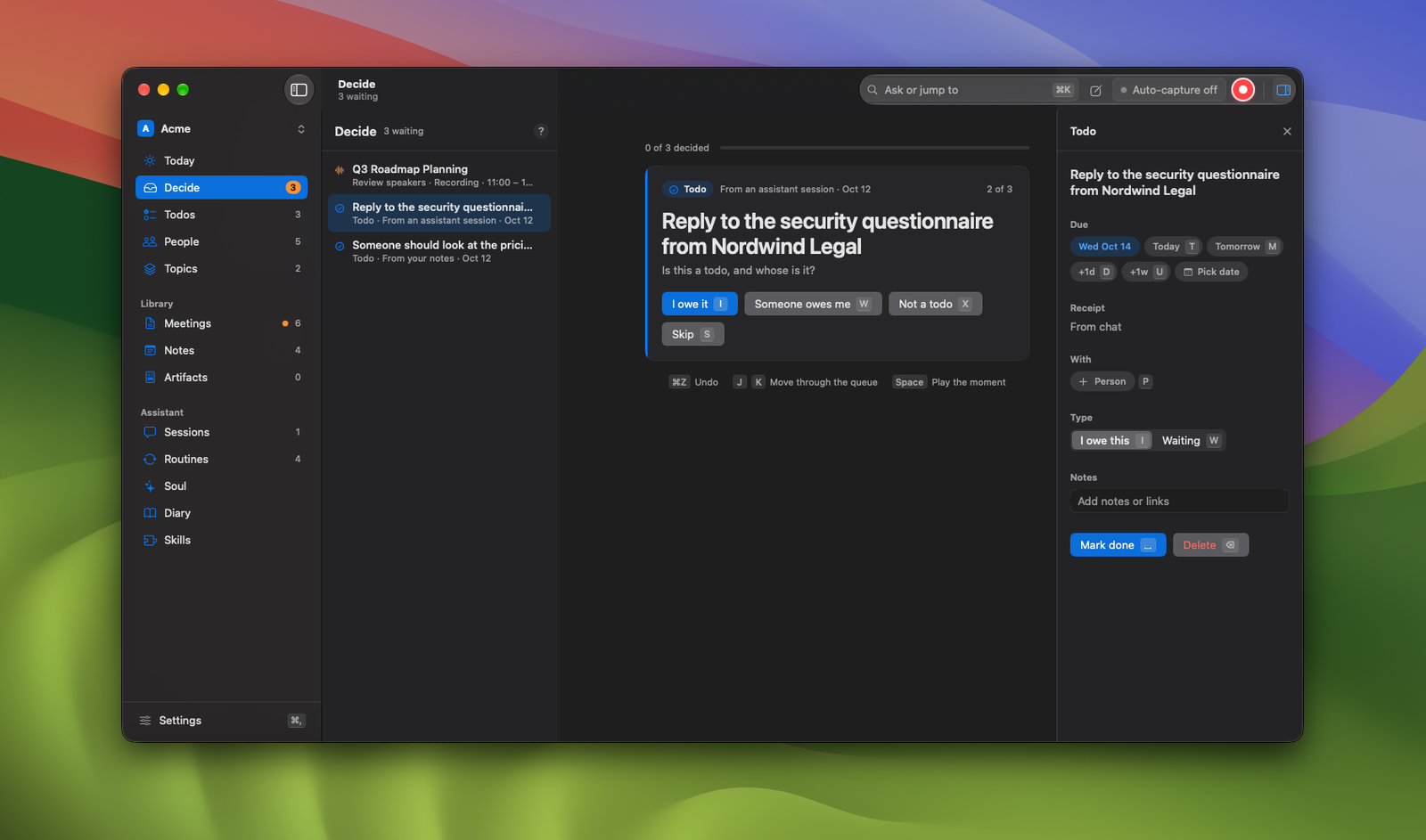
Decide is the one place everything horch is unsure about waits for you: meetings waiting for their speakers, todos it could not file, possible duplicates, facts and profile fields about people, new topics, topics gone quiet, and facts a routine proposed for a topic. The orange badge on Decide in the sidebar counts what is waiting, and Today shows the same number.
The middle column lists the queue; the page shows one card at a time. Each card names its kind (Review speakers, Todo, Possible duplicate, Person fact, Topic fact, Profile, New topic, Park topic), asks one question, and shows the receipt it rests on. Every answer has its own key:
| Kind | Answers |
|---|---|
| Review speakers | Review speakers (Return) opens the meeting's after-meeting flow; Later (S) |
| Todo | I owe it (I), Someone owes me (W, with an owner), Not a todo (X) |
| Possible duplicate | Keep merged (M), Separate (X) |
| Person fact, Profile | Confirm (C), Dismiss (X) |
| New topic | Track as a topic (T), Merge into (M), Later (L), Not a topic (X) |
| Park topic | Park it (P), Keep watching (W) |
| Topic fact | Confirm (C), Dismiss (X) |
J and K move through the queue, S skips a card (it goes to the back and nothing is stored), Space plays the moment the receipt cites, R opens the receipt, and Return runs the card's first answer. Each decision shows a short confirmation with Undo, and ⌘Z takes back the same decision once; a few answers, such as keeping a topic on watch or confirming a fact, have nothing to undo. What you decided lists under Decided today in the column, and an empty queue reads All clear.
A person page's n in Decide chip opens Decide narrowed to that person's proposals; Show all widens it again.
Library
Library is the archive: everything horch keeps, under three rows in the sidebar. Meetings (recorded) holds every confirmed meeting and thread, listed in a middle column beside the open one. Notes (yours) holds what you wrote or captured. Artifacts (what horch wrote) holds the Markdown documents a routine or a session produced.
Meetings
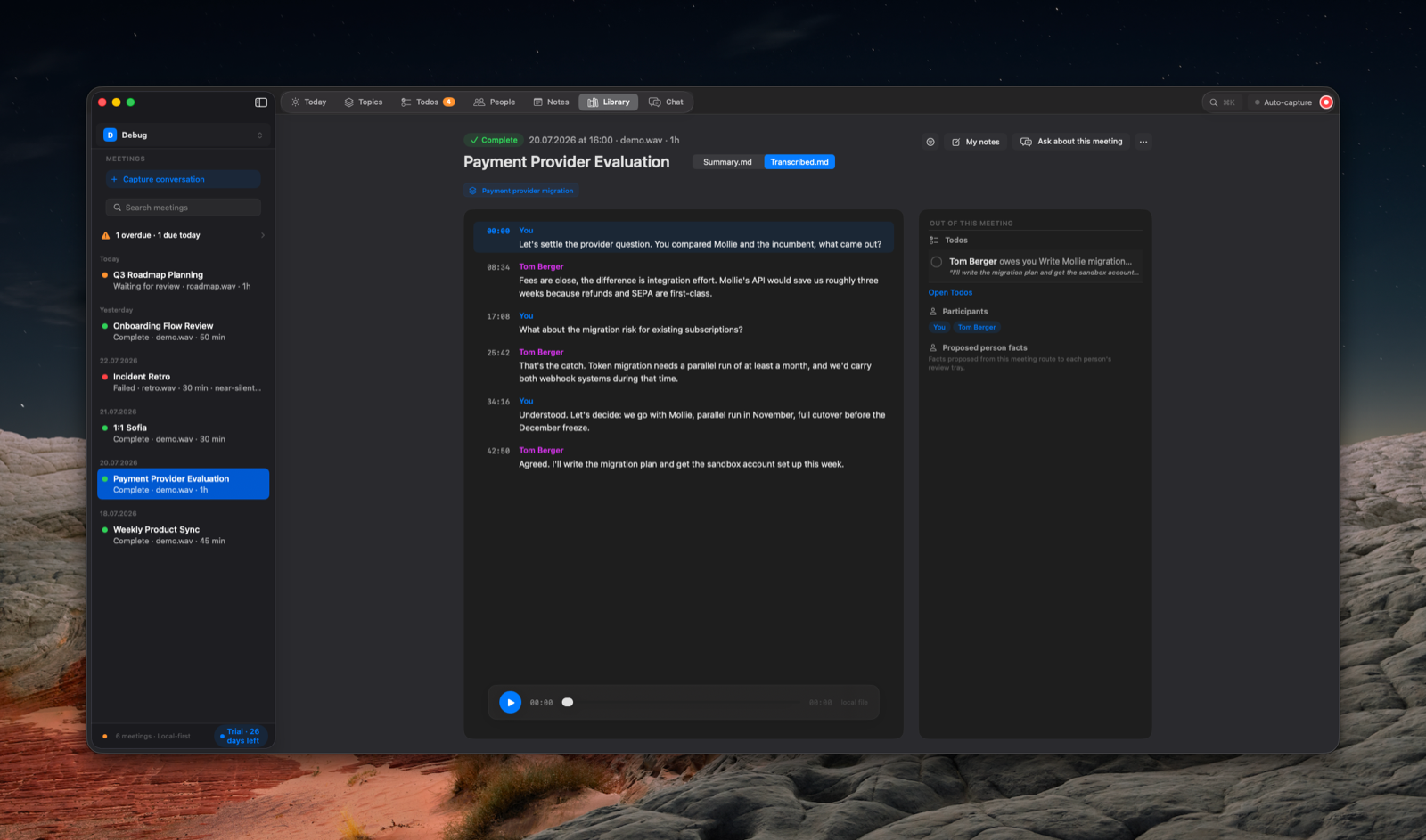
A complete meeting opens on its Summary, with the full Transcript one click away on the toolbar switch: confirmed turns with speakers and timestamps, in-transcript search and speaker filters (⌘F), and audio playback anchored to the words. The page also carries chips for the topics it moved, and its inspector, Out of this meeting, holds the meeting's notes pad, the todos that came out of this meeting, its participants, and the files it wrote.
From here you can rename a meeting (the title updates everywhere), export the transcript, ask the assistant about the meeting, and delete it with all horch-owned artifacts after a confirmation.
Transcribe again is available on a confirmed meeting too, for a transcript that turned out badly. It discards everything the old reading produced first (the transcript and its speaker names, the summary, the published Transcribed.md and Summary.md, and the todos and person facts extracted from the meeting), then reads the retained audio again and puts the meeting back in review so you can name the speakers before a new summary is written. The recording, the title and the timestamps are kept. The confirmation names what goes, including how many todos and facts are attached. It is unavailable if the recording was not retained.
Meetings are not the only row in this list. Chat at the foot of the Meetings column, beside New recording, opens Capture conversation (also in the File menu, and ⌃⌥V from anywhere), which starts a thread: paste or drop an async conversation (a Slack exchange, a chat log), name the participants through the same guided queue as a meeting review, and confirm it. Confirmed threads file into the same timeline as meetings and feed topics, todos, and people pages exactly the same way.
Notes
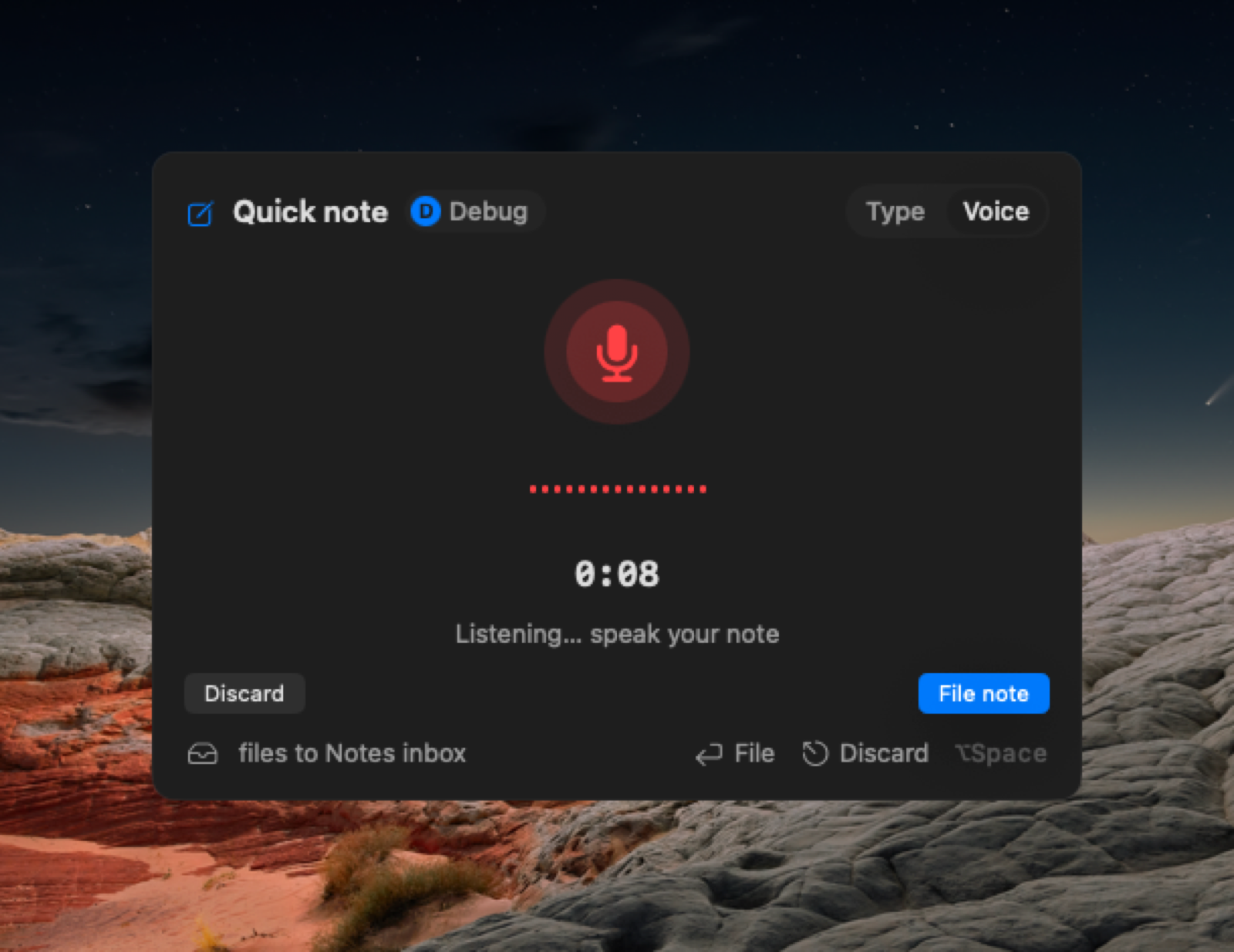
Press the global capture hotkey (⌥Space by default) anywhere on your Mac, or click New note in the toolbar, and a small popup takes a note: spoken (transcribed locally when you stop) or typed. Outside a meeting it defaults to voice; during a recorded meeting it defaults to typing and files into that meeting's notes. All of this is configurable in Settings > Recording & Calendar.
The Notes page collects everything you wrote. One switch picks the view (Inbox, Ideas, Reminders, Meeting notes, Archive), another the pane: Processed shows cleaned-up note cards, Raw is the Markdown browser and editor for what has not been processed yet. Processing a note runs it through your AI provider to produce cleaned-up text and extract todos and links; the raw dump always stays, and a queue in a side panel, with Process and Retry, works through the backlog. A pill in the header says whether processing can run ("AI ready" or "AI not set up"). New note starts one from the page itself, and the page's own filter narrows the list.
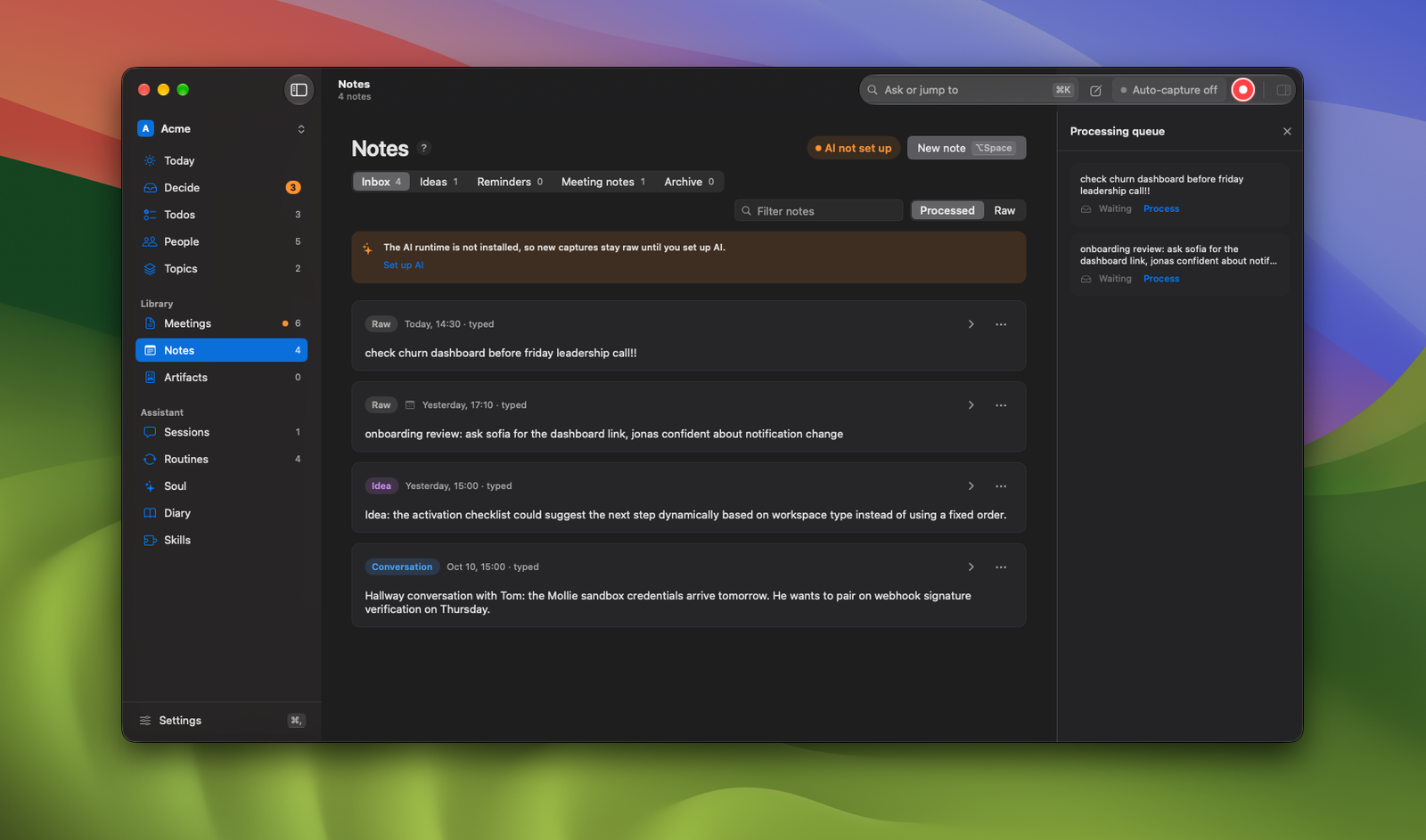
Notes are Markdown files in your workspace folder. Edit them in any editor; horch rescans the folder and reconciles external edits. A plain .md file dropped into your workspace, including into the artifacts/ folder below, is adopted as a Note without being moved.
Artifacts
A routine that leaves an Artifact writes a Markdown file, real on disk inside your workspace folder's artifacts/ subfolder, readable and editable without the app. An Artifact is a sibling of a Note with the opposite voice: a Note is what you said, an Artifact is what horch concluded. Any session can produce one too ("write that up"), not only a routine. A routine that leaves a one-line nudge writes no file: the nudge is a line on Today, not a kept document, and its text stays on the run record.
Ask the assistant in any session to write something up and it publishes an Artifact the same way a routine does, onto the same Artifacts page, with its provenance reading from a session instead of naming a routine. Every write creates a new document: horch keeps every artifact and never rewrites one, so editing an old one is your job in your own editor, which is the point of keeping them as plain files.
An artifact page carries a provenance strip (the routine, the run, and Open session when one still resolves), a visible as of chip because it is a snapshot of the run's moment and not a live view, the file path with Show in Finder, and Edit to open the raw Markdown. An artifact edited outside the app is marked edited by you, because it is then no longer purely horch's voice.
An artifact is never a Receipt. Every claim horch makes cites a primary source: a meeting, a thread, or a note, never another artifact. That is a deliberate guarantee rather than an omission: if horch could cite itself, one misread quote would become the evidence for the next conclusion, and the chain would look sound at every link while resting on nothing. The assistant does not read your artifacts back when it answers you today. Runs are pruned after 90 days; artifacts are kept forever, so an old artifact can outlive the run that produced it and still name the routine that wrote it, even once Open session no longer has anywhere to go.
Today and briefings
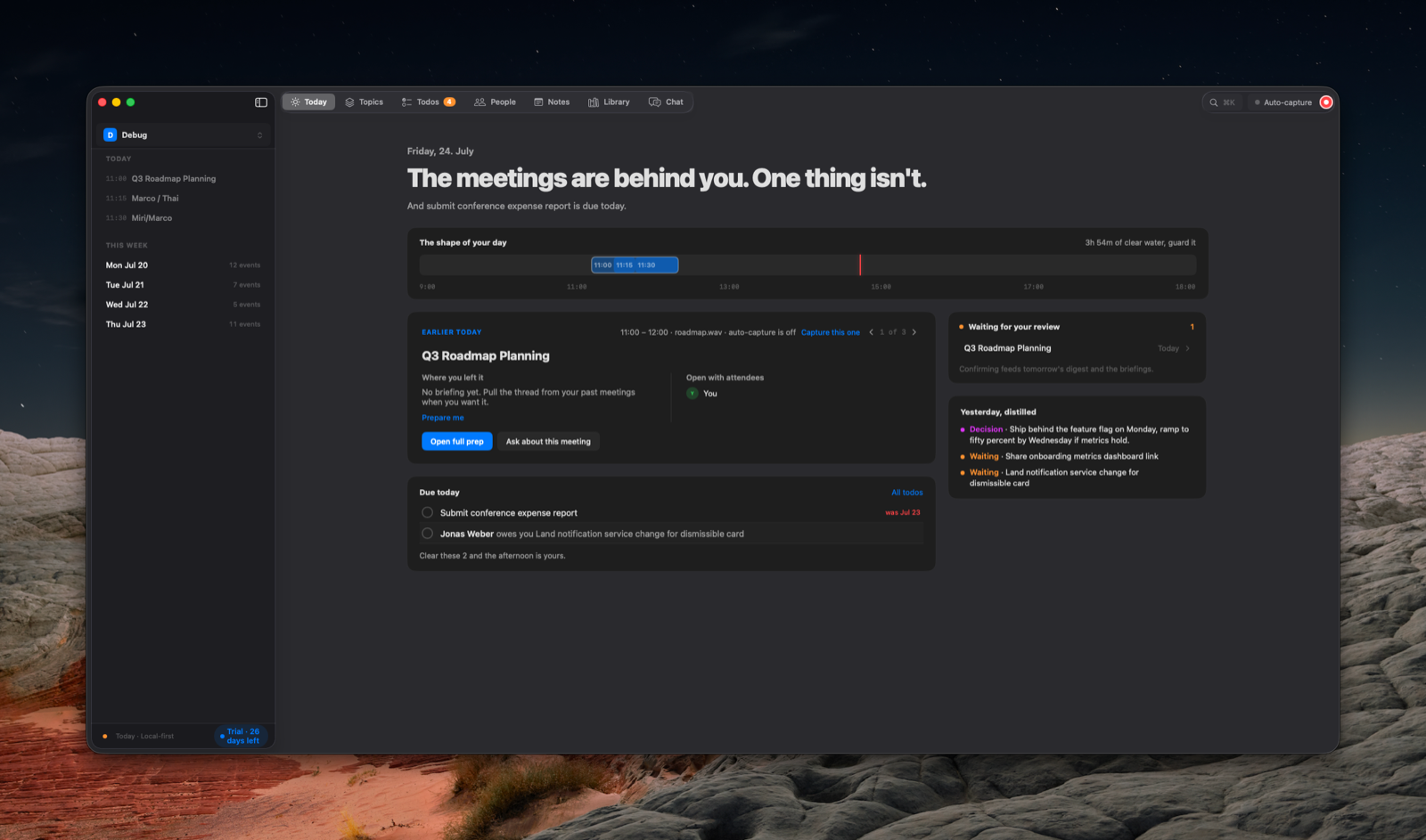
Today is the landing surface: a calm headline built from what is live right now, the shape of the day as a timeline (on days with two or more events), your latest meeting with the one action its state calls for (Stop recording, Review speakers, Open summary, or its progress while it transcribes), the next meeting with its prep, what is due today, how many decisions wait in Decide (Start deciding, D), what moved on your topics since you last looked, and what your last active day distilled to ("Yesterday, distilled"). What is due and what was distilled carry receipt chips back to the meeting.
Meeting briefings are automatic. horch preps today and the next day ahead of time: a catch-up sweep on launch, a nightly tick at midnight, and a refresh whenever a newly confirmed transcript makes an existing briefing stale. You never have to ask for a briefing; when you open the meeting or Today, it is there. A briefing pulls together where you left it with these people, open todos that involve them, and relevant lines from your notes.
Topics
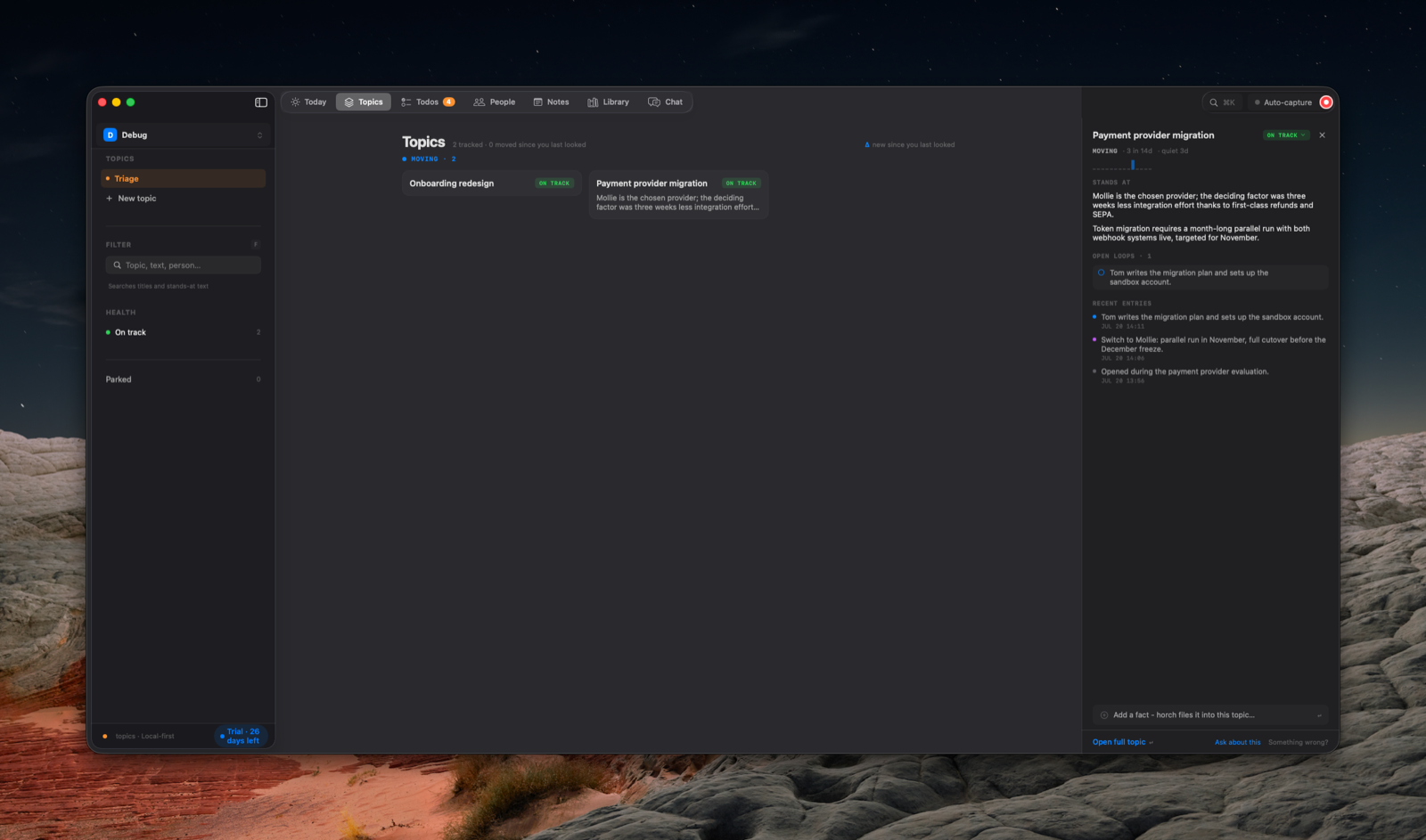
Topics are the threads that run across meetings: a project, a decision, a recurring theme. No topic exists uninvited: horch proposes themes it keeps hearing across your confirmed meetings, and Decide is where you decide each one once: Track as a topic (optionally renaming it), Merge into an existing topic, Later, or Not a topic. Only tracked topics reach the board. Each proposal makes its case under the recurrence counts: its stake, what is actually unresolved and what it costs to leave the theme untracked, then why it surfaced now and the moments it was heard. The raised-by faces are live: hover one for the full name, click it for that person's page.
The board shelves topics by health: Needs you (at risk or blocked), Moving (on track), and Steady & quiet, with parked topics hidden behind a count. Health is judged by the AI after each confirmed source, and it is never a bare label: every verdict says why the topic reads that way and lists what would move it: up to three concrete things you could do, each linked back to the moment it came from. When there is genuinely nothing you can do, it says so rather than inventing an action. You can override a health from a topic's health chip with a required one-line reason, and your override sticks until material new evidence arrives. Settings > Advanced also offers "Reassess topic health" to re-judge every tracked topic from its stored evidence on demand.
Each topic keeps a living case file:
- a stands-at: where the thing currently stands, sentence by sentence,
- a ledger: dated decisions, commitments, and risks, each backed by a receipt into the meeting it came from,
- what is owed and by whom, open questions, and a 14-day momentum pulse.
Click a topic for its glance in the inspector; the full page opens from there (Open full topic, Return). Health filters above the board narrow it, and F focuses a filter field over titles and stands-at text. Topics never nag; there is no unread count to clear. A topic that goes quiet for weeks with nothing owed surfaces in Decide as a park candidate (Park it or Keep watching) instead of lingering. Derivation tuning lives in Settings > AI.
Todos
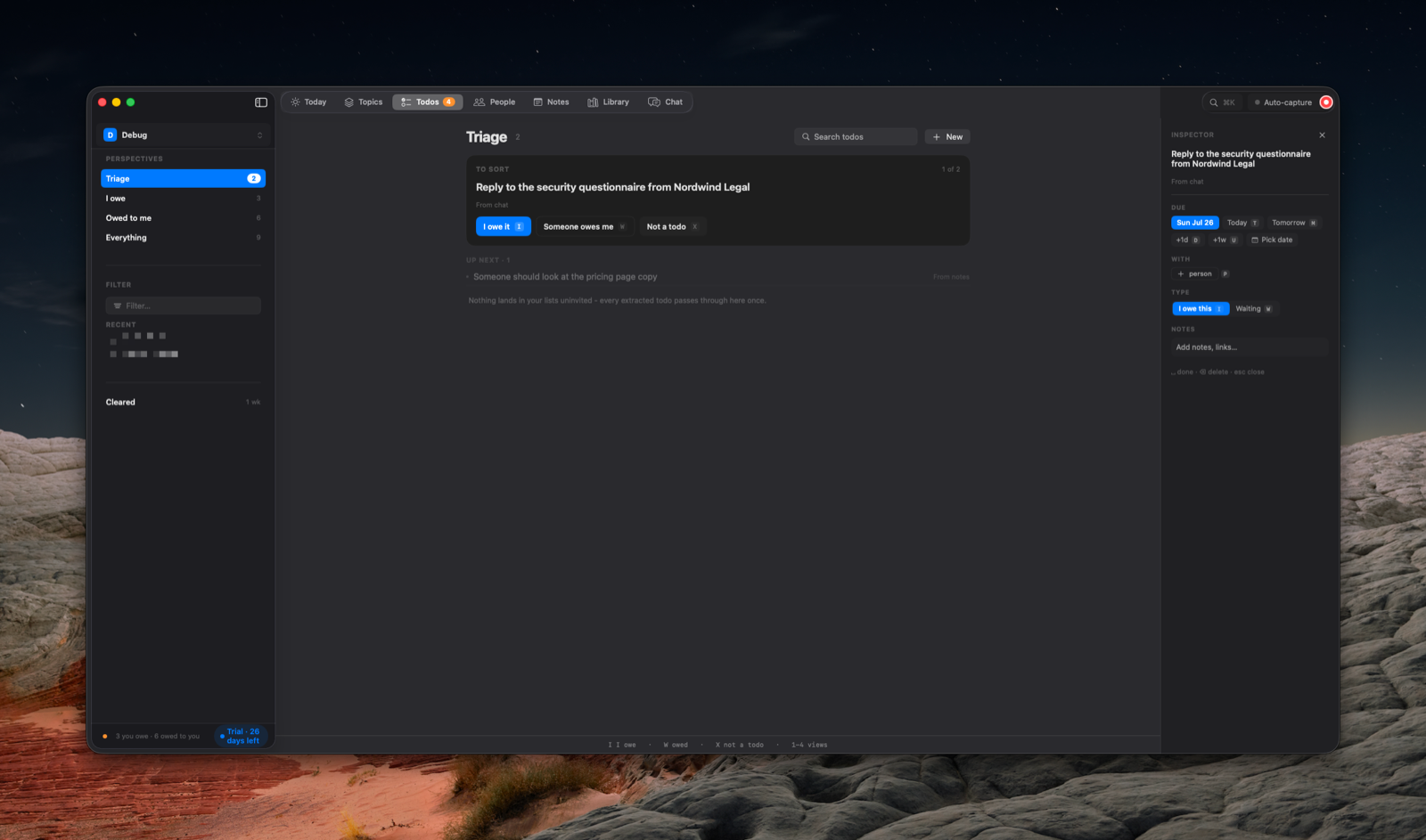
Todos collect themselves from four sources: things said in meetings, lines in your notes, chat, and ones you add by hand. Every extracted todo horch cannot file with confidence waits in Decide once (turn on "Review new todos in Decide first" in Settings > General to send every new one there), where you file it with one key: I owe it (I), Someone owes me (W, with an owner), or Not a todo (X, recoverable from Cleared). The inspector shows the extraction's due date, person, and verbatim quote so you can correct them before deciding.
One pool of todos, viewed through the switch in the toolbar: I owe, Owed to me, Cleared (done and dismissed, restorable), and Everything, on keys 1 to 4. Above the list, a 14-day forecast strip shows the due-date load; clicking a day filters the list to it. A filter field (F) narrows by person, topic, meeting, or source.
Selecting a todo opens the inspector: the one place a todo is edited. Due chips (Today, Tomorrow, +1d, +1w) plus a calendar picker for any date, the type toggle, people, and notes, all reachable from single keys while the inspector is open.
Quick-add parses natural language: call @ada about infra by fri ties the todo to Ada with a due date of Friday. @ opens a people type-ahead.
When a later meeting sounds like a todo got done, horch attaches the evidence and suggests it: "Check it off" completes it, "Keep open" dismisses the suggestion. Nothing completes itself.
The same commitment raised in three conversations is one todo carrying three mentions, each keeping the conversation it came from and the verbatim quote. The row shows the count and nothing else moves: a repeat is information, not urgency. Because the match can be wrong, every merge stays reviewable and reversible. A meeting and a thread list what they merged under Repeats on their own page, right where you confirmed them; a capture has no confirm step, so its merges wait in Decide as Possible duplicate cards next to the unsorted todos. Keep merged leaves the mention where it is; Separate lifts it back out into its own todo, quote and receipt intact, which then waits in Decide to be sorted.
People
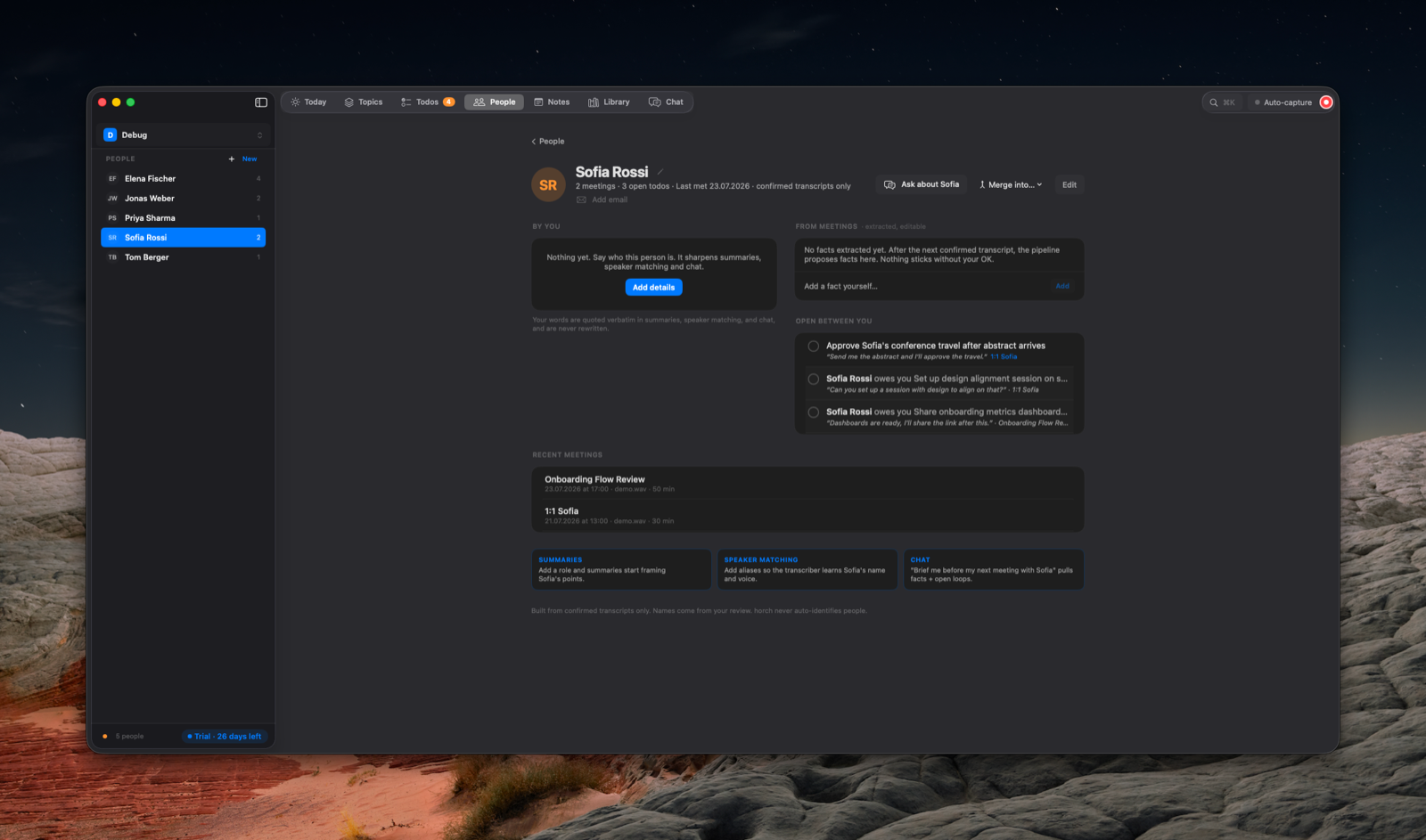
The People list sits in the middle column, with a filter (/), a sort menu, and New; picking someone opens their page beside it.
A person's page opens with a reading, not a list: who they are, then what is live between you, then the evidence underneath. Names still come from your speaker confirmations during review, so the directory is as good as your reviews.
Five fields say who someone is: Role, Relationship, Who is this, Working with them, and Aliases. You can write any of them, and horch can propose any of them, but nothing it proposes reaches the page until you confirm it. Each field quietly carries who wrote it; hover one to see. Edit a value and it becomes yours from then on. Confirmed fields are quoted word for word in summaries, briefings and chat, whoever drafted them.
Under that sit the facts: atomic statements drawn from confirmed transcripts, each with a receipt you can click back to the moment it was said. They group onto four shelves, Responsibilities, Ways of working, Positions and History, and open collapsed except the one holding the newest fact. When several facts say one thing, horch can propose folding them into one sharper fact that keeps every original receipt. That is the only way the list shrinks.
Around them shows the structure horch has confirmed: who they report to, who is on their team. Those edges are receipted like facts, and beside them sit up to two chips computed live from attendance, the person you share the most meetings with and anyone you seem to be drifting from.
Proposals in Decide
Everything horch proposes about people waits in Decide, reached from the sidebar or from the "n in Decide" row at the top of the People list (T); a person page's n in Decide chip narrows it to that person. Four kinds of card interleave there: a new fact (Person fact), and under Profile a value for a profile field, a consolidation, and an org relation. Every card offers the same two answers, Confirm (C) and Dismiss (X), and says in one line exactly what each will do. Skip stores nothing; it moves you on and the card comes back. Dismissing a proposed field keeps yours and stops that same evidence arguing again.
Confirming a relation that names someone not in your directory creates them, marked never met, with that one relation to their name. That card says so in amber, because it is the one answer here that makes a new person.
The Map
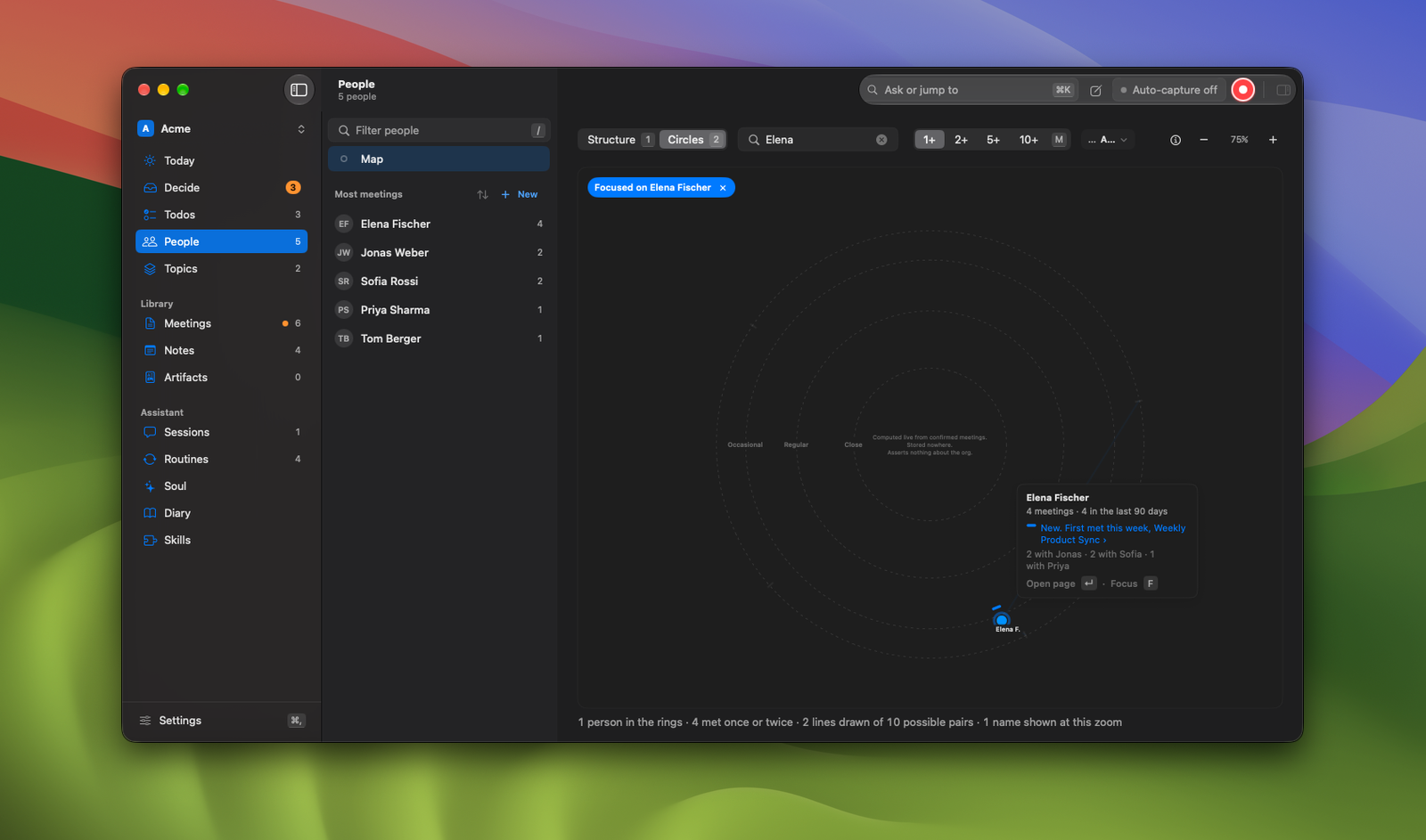
Map, a row at the top of the People list (M), draws the same people two ways. Structure lays out the relations you have confirmed, with everyone no relation places yet in a tray below, so a partial chart stays honest about being partial. Circles places each person in a ring by how often you meet them (Close, Regular, Occasional) and draws lines only between other people who share meetings; you are never drawn, so the clusters read on their own. Hovering a relation shows its receipt, because the drawing never claims more than its sources do.
The People routine
horch can read your people on a schedule and file what it concludes into Decide. It is off by default and lives with the other routines on the Routines page, where you can change its prompt, change its hour, or leave it off entirely. When on, it reads only people something new was confirmed about, and it refuses to write a field it cannot ground in confirmed facts: someone with two meetings gets "not enough yet" rather than a confident sentence built from one conversation.
Everything on a person's page went through your hands. Facts and fields come from transcripts you confirmed, people from your review or a relation you confirmed. horch never matches a voice to a name without you.
Ask and the Assistant
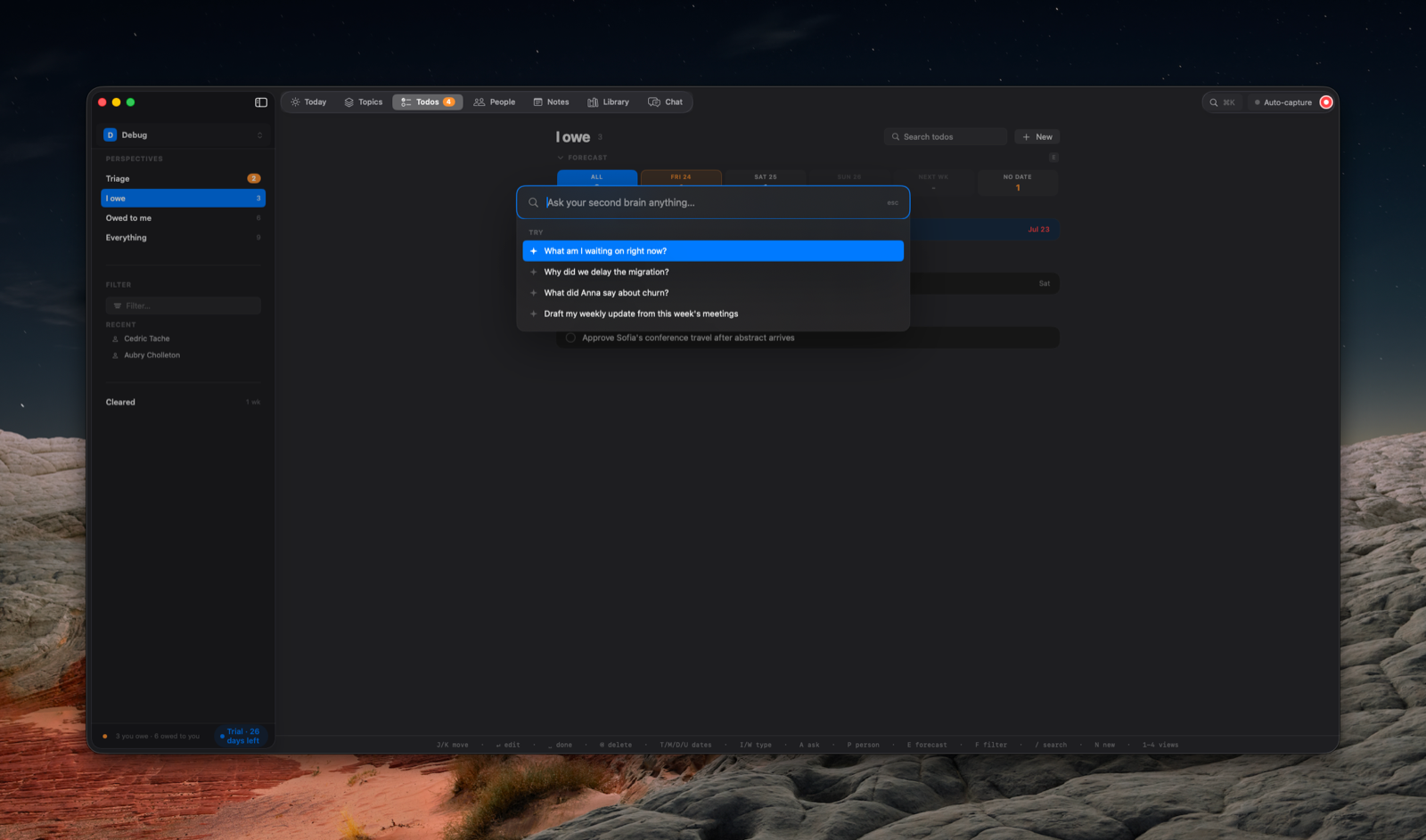
⌘K opens the fastest door: type a question, press Return, and horch answers inline with citations that jump straight into the cited meeting. Arrow onto a search result instead and Return navigates to it, and the Go to section jumps to any screen by name. "Ask the assistant" hands the question off to a full session.
The Assistant section of the sidebar is the long-form surface: every session over your whole library, everything horch runs by itself, and its continuity layer, all in one place. Sessions lists your sessions in the middle column, grouped by date, with New session (⌘N) and a search field at the top; a session narrowed to one person or meeting shows that scope as a chip above the conversation. Routine runs are sessions too, but they are listed on the Routines page under Recent runs rather than here, because a few built-in routines firing on every confirmed meeting will bury a week of your own sessions inside a day. Below Sessions sit Routines (the registry, covered below), then Soul, Diary, and Skills. ⇧⌘A pops the whole Assistant out into its own window: same surface, same live state, useful when you want it beside another app instead of behind the main window.
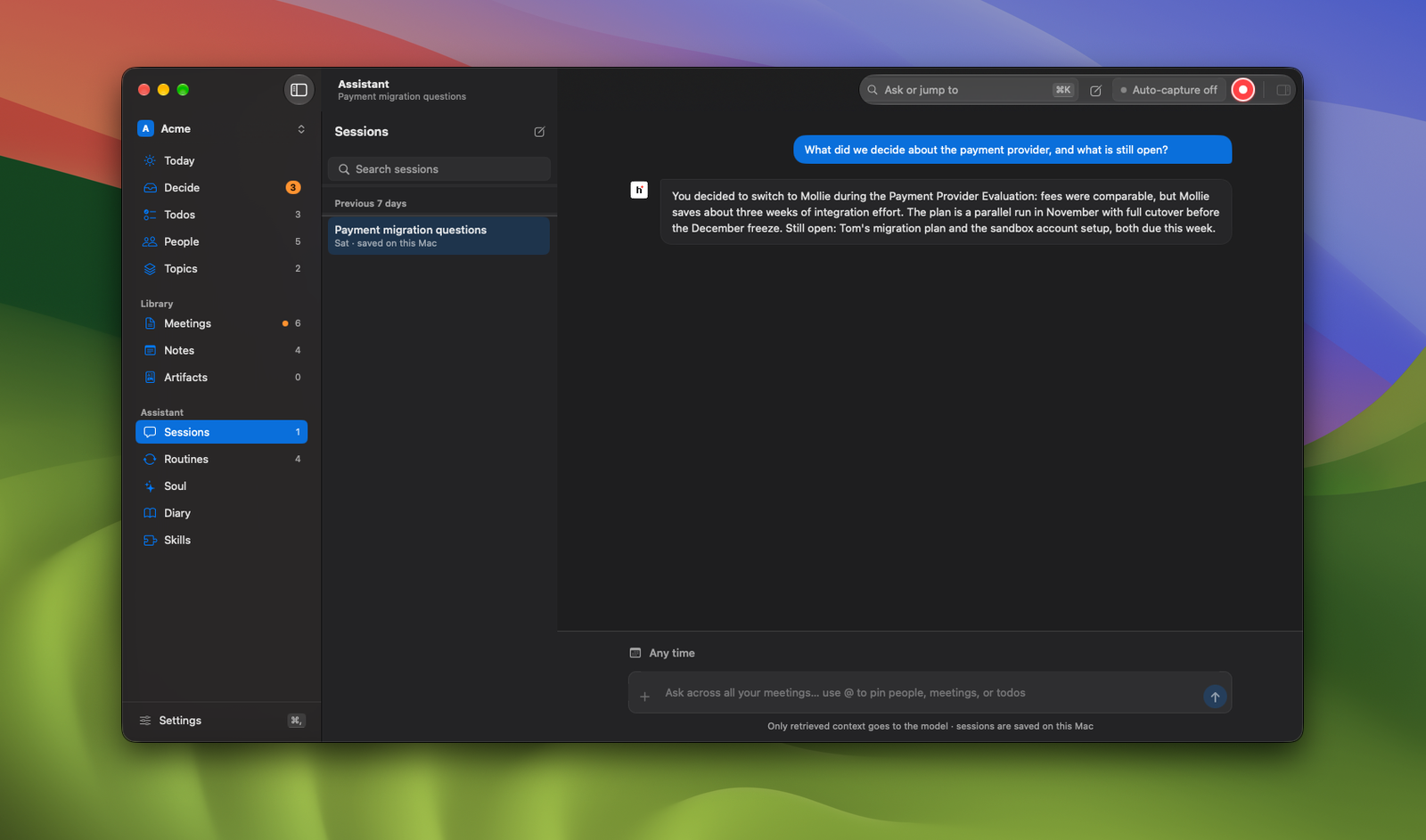
A session can search your confirmed meetings, read your notes, look at your todos and add new ones, and recall what you taught it. Only the retrieved, relevant excerpts are sent to your provider, never the library wholesale, and audio never leaves the Mac.
You can also give a message something to look at. Paste a screenshot with ⌘V, press + to pick files, or drop them straight on the composer; each one appears as a chip above the input and comes off again with one click. Up to five files per message, 25 MB each. horch copies them into its own storage so reopening the session still shows them, and deleting the session deletes them with it. Files reach the assistant as a path it opens with its own tools, so it reads only the part your question needs rather than having a whole PDF pasted into the prompt. Screenshots and other PNG, JPEG, GIF and WebP images are sent as images as well, so a model with vision actually sees them. Not every model can: if yours cannot, it will say so in its answer rather than guess at what the picture showed.
A few things make the Assistant yours over time, each managed from its own page under Assistant in the sidebar, except scoped memories, which live on the page of the person or meeting they are about:
- Scoped memory. Tell it to remember something about one person or one meeting and it persists as a fact, a preference, or a standing instruction, recalled only when that subject is pinned. There is no memory about you in general: that is what the Soul and the Diary below are for. Each one is managed where its subject lives, under From sessions on the person's page or in the meeting's "Out of this meeting" inspector, where you can edit or delete it.
horch memorydoes the same from the terminal. - Skills. Reusable instruction sets (Agent Skills) the assistant can use. Curated built-ins ship with horch; add your own by writing a
SKILL.mdor dropping a skill folder onto the Skills page, and enable or disable each one. - Soul and Diary. Off by default, behind one switch in Settings > Data & Privacy. Turn it on and horch asks a handful of questions about how you want it to behave, and writes the answers to a Soul it reads into every chat turn. From then on it keeps a private Diary of what it judged worth keeping, from chats and from meetings you confirm. Everything is plain Markdown on your Mac and nothing syncs. Every entry the Diary wrote is visible there, and you can correct one or delete it outright, so a wrong entry never keeps feeding what reads it next. A quiet line at the top of the Diary page says what the layer has done since you turned it on: how many chat turns, confirmed meetings, and confirmed async captures it read, how many of each it kept something from, and when it last read and last wrote. Most of what it reads is meant to pass, so chances far outnumbering entries is the normal shape; that line is there so an empty Diary is never a mystery. Turning the switch off stops every write, the schedule, and the injection, and leaves every file where it is. The Dream routine, covered below, distills the Diary nightly, weekly, and monthly into Themes, and can propose a change to the Soul; proposals wait on the Soul page for you to accept or reject, and accepting is the only thing that changes the Soul.
Routines
A routine is one prompt horch runs for you by itself: a trigger, a prompt, what it is allowed to do, and where the result lands. One prompt, one run. There is no canvas, no branching, no steps, and no routine that starts another; if you want two things done, write two routines.
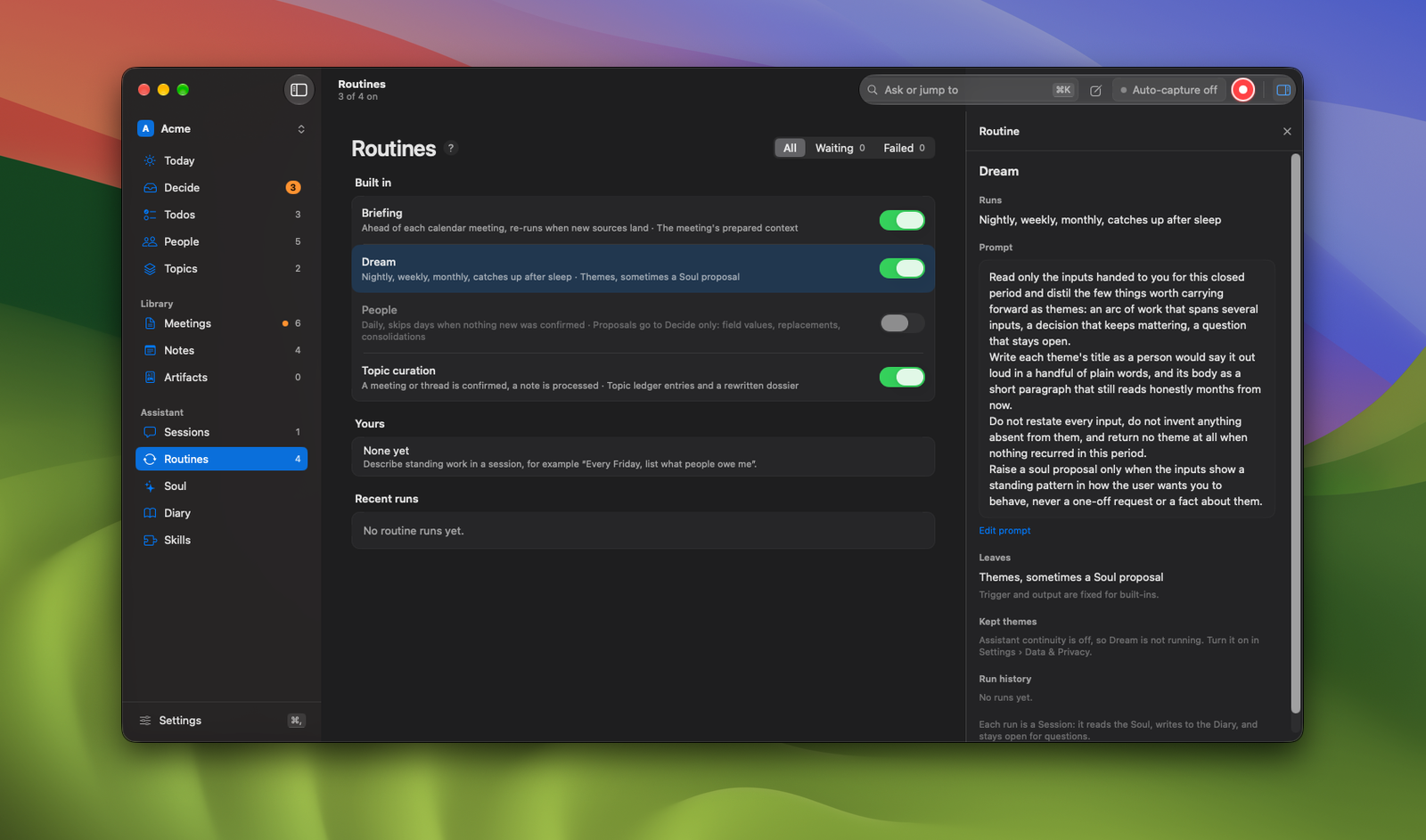
Routines under Assistant in the sidebar opens the registry: the whole list, in two groups. Built in holds the three routines horch has always run by itself, now visible instead of hidden: meeting Briefing, the assistant's Dream, and Topic curation. Yours holds the ones you wrote. Every row has a switch, and switching a built-in off actually stops it: no briefing is prepared, no Dream runs, no curation pass fires. A switch in the page's header shows All, Waiting, or Failed; under All, the Recent runs group at the bottom, every routine's runs newest first, is the fastest answer to "what did horch just do". Clicking a routine or a run opens it in the inspector.
Built-in prompts are editable, with one honest limit: your edit is added to horch's own instructions, not put in their place. Each routine builds its prompt in two parts, a fixed wrapper horch wrote and your template passed alongside it, so you can tell Dream what to weigh or tell Briefing what you always want called out, but you cannot overrule a built-in rule like "do not invent anything absent from the inputs". Their trigger and their output are fixed too: a built-in runs on its own machinery, so the page shows what it does rather than a schedule you can change. Dream absorbed what used to be its own tab: its inspector holds its config, its Kept themes, and its runs, and a run's record carries a What it read section holding the verbatim input snapshot alongside the Themes that run kept, present even when the run failed partway through. Briefing is the opposite of a page: a briefing belongs to the meeting it prepared, so its inspector holds only its prompt, and clicking one of its runs, in the registry or under Recent runs, opens that meeting directly rather than a run record, once the meeting has actually been recorded.
Writing one
There is no new-routine button. You describe standing work in any session, in a sentence: "every Friday at 17:00, tell me honestly how the week went". Schedule words like "every", "daily", or "Fridays at" trigger the read-back immediately: the assistant answers with a draft card stating what it understood, field by field: name, Runs (the trigger), Prompt, Can (the capability), Leaves (the output). Event phrasing without a schedule word ("when a topic turns blocked, write up the options") gets one line first, "Keep this as a routine?", and the card only appears after you say yes. Reply to correct anything and the changed field shows a diff chip. Create routine saves it; nothing exists until you press it. Just answer once runs the same prompt right now, as an ordinary answer, and leaves the registry untouched, the escape hatch for over-detection.
When it runs
On a schedule. Daily, weekly or monthly at a local time. If your Mac was asleep at the hour, the run catches up at the next wake instead of being silently skipped, and the catch-up is bounded: a Mac that was off for a month owes one run, not four.
When something happens. Today that means a source you confirm (a meeting, a thread, or a processed note, optionally narrowed to one meeting series, attendees, or topics) and two todo signals: a todo going overdue, or a todo staying open for a number of days you pick.
Narrowing by a rule. Series, attendees and topics cover most routines, and some conditions none of them can state: only Experiment 1, 2, 3 or 5 syncs, any meeting whose title mentions hiring, but never a backfill. Describe one of those when you author the routine and the assistant writes it as a rule: a small condition over the source's kind and its title, series, attendees, or topics, joined with and/or/not. The rule is checked by horch before anything runs, so a source it excludes never starts a run at all. That matters more than it sounds: the alternative is putting the condition in the prompt, where only the model can read it, which means the routine fires on everything and then decides it should not have. The routine's Runs line reads the rule back in plain language, and a Rule section on its page shows the rule itself, editable, with Remove rule to go back to matching everything the named fields admit.
Meeting-driven routines fire on your confirm, never when the meeting ends. That is the same rule as everywhere else in horch, and it is why a routine can sit in waiting: the meeting is recorded, its draft is ready, and the run is held until you confirm it. Waiting is always stated, never silent, in three places: the row's status, a box at the top of the routine's own page with Review transcript, and a waiting card on Today.
What it is allowed to do
Three rungs, one per routine, called the capability level:
| Rung | What the run can reach |
|---|---|
| Report | Reads horch: meetings, notes, threads, todos. Writes nothing back. The default |
| Propose | Also writes drafts: todos land in Decide unsorted for you to file. Nothing becomes canonical without you |
| Operate | Exactly what the Assistant can do, the shell included |
Operate deserves a plain sentence: it is the full assistant toolset, it runs unattended, and it can reach the network. horch does not restrict it further when nobody is watching; it marks it instead, in purple, never red, because Operate is reach, not error. The rung carries a purple badge on the row, a stronger description where you pick it, and a banner on every run record it produces, and that record lists the files the run read and wrote. Pick it when a routine genuinely needs to act; the assistant never proposes it for you.
Whatever a routine writes still goes through the normal gate. A routine-created todo arrives in Decide unsorted, marked with the routine and run that created it, and keeps the real receipt of the promise it came from.
Reading the results
A run that decides there is nothing to do leaves nothing at all: no run record, no card on Today, no artifact, not even a session. A routine whose condition a rule cannot fully state ("...and only when it reads like a real update") still has to start to make that call, and when the answer is "not this one", horch keeps no trace of having asked. A run you started yourself, with Run now or Run again, always answers: a button that can come back with silence is a broken button.
Finished runs reach you on Today, under the day's own material, in a From routines group, and only there. It is weighted by what it is: a report card with an excerpt and receipt chips, a one-line nudge with no card around it, a waiting card, or one gray line listing runs still ahead of you. Successful runs never notify you. Failure never appears on Today: it shows as a red dot on Routines in the sidebar, a red row in the registry, and the run record itself with a Retry now, written in plain language.
Every run of a routine you wrote is a real Session: it reads your Soul and writes what it kept to the Diary when the continuity layer is on. Open it from the run record or from Today and keep talking to it with its whole context intact. A built-in's run is logged like any other but has no session of its own: it is its own pipeline doing what it always did. Run records are kept for 90 days; artifacts a run produced are kept forever regardless; the sessions follow normal session retention.
Two boundaries: routines run only while horch is open, on this Mac, and nothing they produce leaves horch. There is no Slack, email or webhook delivery, and the Companion neither writes nor runs routines.
AI providers
Transcription and diarization always run locally with the models installed during onboarding (Settings > AI). The AI provider only powers summaries, chat, note processing, briefings, and topics.
horch installs and manages its own isolated AI runtime (a horch-owned Pi runtime with its own profile). It never touches your system's tooling or credentials. Three ways to power it, in Settings > AI:
- Local. horch manages a local model runtime (Ollama) and a curated model list, with a recommendation for your machine. Fully offline.
- API key. Anthropic, OpenAI, or Google. The key is validated and stored in the isolated profile.
- Subscription login. Sign in with an existing provider subscription through the isolated profile.
Workspaces
A workspace is one self-contained brain: its own meetings, notes, todos, topics, people, and settings. Keep one, or separate contexts (say, two jobs) into several. Switch with the workspace switcher in the sidebar or ⌘1 through ⌘5. The CLI follows the app's active workspace and takes --workspace <NAME> to target another.
Your files
horch is files first. Everything confirmed or written is plain Markdown in the workspace folder you picked during onboarding:
Transcribed.mdper meeting: the canonical confirmed transcript.Summary.mdper meeting: the generated summary.- Your notes as individual
.mdfiles. - Artifacts as individual
.mdfiles underartifacts/, one new subfolder added inside the same workspace root; nothing existing moved to make room for it.
Where transcripts land inside the folder is a template (Settings > Data & Privacy) built from tokens like {date}, {calendar}, {title-slug}, and {meeting-id}.
The files are yours: sync them, version them, open them in Obsidian. If you edit a Markdown body externally, horch re-indexes the text for search; it never overwrites your edit, and external edits never corrupt the internal transcript data.
Recordings, the database, and internal state live in horch's Application Support directory and stay on the machine.
Backup and restore
Settings > Data & Privacy exports a single .tar.gz archive of your local data: the database, your Markdown files (meetings, notes, and artifacts), and retained audio payloads. Secrets (provider credentials) are never included. Restore accepts the same archive. The same operations exist as horch backup export <path> and horch backup restore <path>.
Settings reference
⌘, (or Settings at the bottom of the sidebar) opens Settings, in six panes:
| Pane | What lives there |
|---|---|
| General | Appearance, your name, notifications, whether every new todo waits in Decide, opening horch at login, updates |
| Recording & Calendar | Manual, remind, or auto-start mode; reminder lead time; watched calendars; sources, system-audio fallback, raw-audio retention; quick-capture and conversation-capture hotkeys, voice/typing defaults, meeting filing |
| AI | Local model, API key, or subscription login for the bundled runtime; transcription and diarization models; custom prompt templates for summaries and chat; topic derivation tuning |
| Data & Privacy | Workspace folder, path template, backup and restore; what is retained, what is sent, and to whom; the Soul and Diary switch; device sync, off by default; deleting the workspace's data |
| Account | Trial status, activation, license management; renaming the workspace |
| Advanced | Setup Doctor, diagnostic bundles, topic tools (recreate, reassess health); serve your memory to AI agents over MCP, with one-click agent setup; the command line tool |
The command line
Everything above is also a CLI. Install it from Settings > Advanced > Command line tool ("Install horch Command"; an administrator prompt creates a symlink at /usr/local/bin/horch pointing into the app bundle, so app updates keep the CLI current). Then:
horch --help
Conventions that hold across the whole CLI:
- Every read/write command takes
--jsonfor stable, scriptable output. - Every command takes
--workspace <NAME>to target a workspace other than the app's active one. horch help <command>or-hon any level prints the full usage.
# a taste
horch record start --source Slack
horch record stop
horch review show <meeting-id>
horch review confirm <meeting-id>
horch search "budget freeze" --limit 5
horch todo add "call @ada about infra by fri"
horch chat tui
Setup and health
| Command | What it does |
|---|---|
horch doctor | Check storage, database, credentials, models, and provider readiness |
horch model list | List verified transcription/diarization models with installed and active state |
horch model setup-local --transcription <id> | Install and activate the default local model configuration |
horch model install / activate | Install or activate verified models by id |
horch model activate-custom | Activate your own model files |
horch ai setup / update / readiness | Install, update, or check the bundled Pi runtime |
horch ai provider status | Show configured providers and the default provider/model |
horch ai provider set-key <provider> | Store an API key for anthropic, openai, or google (read from stdin, never argv) |
horch ai provider sign-out <provider> | Remove a stored credential |
horch ai login | Subscription login through the isolated profile |
horch ai local status / install / models / pull | Manage the local (Ollama) runtime and curated chat models |
horch ai open | Open an interactive session in the bundled runtime |
horch ai env | Print non-secret runtime and environment paths |
Recording and the pipeline
| Command | What it does |
|---|---|
horch record start [--source <app>] | Start a microphone plus app recording |
horch record stop / status | Stop the active recording; show what is recording |
horch record recover | Mark stale recordings failed so recording can start again |
horch import --mixed <file> | Import one mixed audio file |
horch import --mic <file> --app <file> | Import separate microphone and app tracks |
horch meeting list / show <id> | Browse persisted meetings |
horch meeting transcribe <id> | Run local transcription and diarization |
horch review show <id> | Print the draft transcript for review |
horch review rename-speaker / merge-speakers | Name or merge draft speakers |
horch review edit-turn / merge-turns / split-turn | Fix the draft text |
horch review confirm <id> | Confirm the draft and publish Transcribed.md |
horch summary readiness / generate <id> / show <id> | Check, generate, or print a meeting summary |
horch meeting prep generate / regenerate / show <id> | Manage a meeting's prep briefing |
horch meeting rename --title <t> <id> | Rename a meeting everywhere |
horch meeting index --transcript <path> <id> | Index an externally confirmed transcript for search |
horch meeting delete <id> | Delete a meeting and all horch-owned artifacts (asks; --yes to skip) |
horch job list / show / cancel / retry | Inspect and control processing jobs |
horch job recover-interrupted | Recover jobs left running by a crash as interrupted |
Working with your library
| Command | What it does |
|---|---|
horch search <query> | Full-text search across confirmed meetings |
horch chat tui | Cross-meeting chat in the terminal |
horch calendar view [--today <date>] | The day's recorded and upcoming meetings |
horch note add <text> [--meeting <id>] | Capture a note into the inbox or a meeting |
horch note list --view <inbox|ideas|reminders|meeting-notes|archive> | List notes per view |
horch note show / edit / archive / delete | Manage one note |
horch note process [<id> | --all-raw] | Run AI processing on one note or the raw backlog |
horch note rescan | Reconcile external edits to the Notes folder |
horch todo list --lens <loops|everything|by_meeting|triage|cleared> | Project the todo pool through a lens (triage backs the Dated and Waiting views) |
horch todo add "<input>" | Quick-add with @person and a due phrase (--preview to parse without creating) |
horch todo edit / complete / reopen | Update a todo |
horch todo delete / restore | Delete a todo (prints a restore snapshot) and restore it |
horch todo accept / keep-open <id> | Resolve a sounds-done suggestion |
horch people list [<query>] / show <id> | Browse the people directory |
horch memory list | List every scoped memory |
horch memory recall --scope <person|meeting> --scope-target <id> <query> | Search one subject's memories |
horch memory remember <text> --scope <person|meeting> --scope-target <id> [--kind] | Persist a new memory about a person or a meeting |
horch memory edit / delete <id> | Change or remove a memory |
horch workspace list | List workspaces and mark the active one |
Configuration and data
| Command | What it does |
|---|---|
horch settings transcript-workspace set/show | The folder confirmed Markdown is written to |
horch settings transcript-path-template set/show | The path template ({date}, {calendar}, {title-slug}, {meeting-id}) |
horch settings prompts show/summary set/chat set | Prompt templates for summaries and chat |
horch settings calendar set --mode <manual|remind|auto-start> | Calendar recording mode |
horch settings capture set | Quick-capture hotkey and defaults |
horch backup export/restore <path> | Backup archive out and in |
horch diagnostics bundle <path> | Metadata-only diagnostic bundle |
Agent access (MCP)
Your AI agents can use horch's memory too. The running app serves an Agent surface over MCP: five read tools (horch_search, horch_meeting_get, horch_person_get, horch_todos_list, horch_topic_get), two writes (horch_capture_add, horch_todo_set_status), and a health check. An agent on your Mac, say Claude Code working in a repo, can ask what was decided in a meeting, trace a todo back to who said it, or file a capture into your inbox.
Three properties make this safe to trust:
- Every claim carries a Receipt: the source meeting, timestamp, speaker, and verbatim quote, so the agent cites your meetings instead of paraphrasing from thin air.
- Same-machine only, with one deliberate exception to "nothing listens": the surface is a localhost-only, token-protected HTTP endpoint served only while horch is running. It is unreachable from the network, every request needs the access token from Settings, and nothing leaves the machine. Close horch and it is gone.
- Writes are limited to adding a capture and checking off a todo. No agent can edit your meetings, transcripts, facts, or summaries.
Connecting an agent
Settings > Advanced > Agent access detects the agents installed on your Mac (Claude Code, Cursor, Windsurf, VS Code, opencode, pi, Codex) and connects any of them with one click: horch writes a single horch entry into that agent's own MCP config, carrying the endpoint URL and your access token. Where the agent supports skills (Claude Code, opencode, pi, Codex), the click also installs the connecting-meeting-context skill, which teaches the agent the tool surface and the Receipt model. Codex reads the token from the HORCH_AGENT_TOKEN environment variable; the pane has a copyable export line for your shell profile.
For any other MCP client, register a streamable HTTP server manually (URL and token are both copyable in Settings > Advanced > Agent access):
{ "mcpServers": { "horch": { "url": "http://127.0.0.1:46724/mcp", "headers": { "Authorization": "Bearer <your token>" } } } }
Clients that only speak stdio (Claude Desktop's JSON config, older tools) can bridge with a generic shim, for example npx mcp-remote http://127.0.0.1:46724/mcp --header "Authorization: Bearer <your token>".
One boundary worth knowing: full verbatim transcripts are returned only when the agent explicitly asks for them (horch_meeting_get with verbosity: detailed). Summaries, receipts, and excerpts flow freely; the word-for-word record never leaves by default.
Updates
horch checks for updates and installs them in place (Sparkle). "Check for Updates" lives in the app menu. Release history and direct downloads are on horch.app/downloads. Updating the app also updates the installed CLI, since the command is a link into the app bundle.
License
The trial runs 30 days from first launch with everything enabled; Settings > Account shows what is left. After buying, the key arrives by email; activate it under Settings > Account. One license covers 2 Macs at the same time, includes 1 year of updates, and the versions you have keep working forever. Details on pricing.
Troubleshooting
- Setup Doctor (Go to Pane > Setup Doctor, or Settings > Advanced) re-checks permissions, storage, database, models, credentials, the provider, and the transcript folder, and offers fixes for whatever is red. The same checks run as
horch doctor(add--jsonfor scripting). - A model download failed while you were away: the toolbar keeps a "Model download failed" pill until you deal with it. Click it to see why and try again.
- Something failed with a "Copy details" button: the message says what happened and the button beside it goes where it can be fixed. "Copy details" puts the underlying technical error on the clipboard for a bug report.
- A recording will not start because a previous one looks active:
horch record recovermarks stale recordings failed. - A meeting is stuck or failed: open it under Meetings for the failure state and retry, or use
horch job listandhorch job retry <id>. After a crash,horch job recover-interruptedcleans up jobs left in a running state. - The
horchcommand stopped working after the app was moved or deleted: horch detects the broken link at launch and offers to repair it, or reinstall it from Settings > Advanced. - horch does not open at login with the switch turned on: macOS keeps its own say over login items, and can hold horch back until you allow it under System Settings > General > Login Items. Settings > General > Startup says when that is the case and has a button that opens the right pane. The switch reads macOS rather than a setting of its own, so turning horch off in Login Items turns the switch off too.
- Reporting a problem:
horch diagnostics bundle <path>creates a metadata-only archive (no audio, no transcript text) you can attach.